Skip to main content
Mobile menu
Octopart Discover
Altium Develop
Altium Agile
Resources & Support
Free Altium 365 Tools
Gerber Compare
Online PCB Viewer
Resources & Support
Learning Hub
Support Center
Documentation
Webinars
Altium Community
Forum
Bug Crunch
Ideas
Education & Training
Student Lab
Educator Center
Altium Education Curriculum
Altium Professional Training
Search Open
Search
Search Close
Sign In
Main menu
Home
PCB Design
Collaboration
Component Creation
Data Management
Design Outputs
ECAD/MCAD
HDI Design
High Speed Design
Multi-Board
PCB Layout
PCB Routing
PCB Supply Chain
Power Integrity
RF Design
Rigid Flex
Schematic Capture
Signal Integrity
Simulation
Software
Develop
Discover
Agile
Altium 365
Altium Designer
Education
Programs
Altium Academy
Engineering News
Guide Books
Newsletters
Podcasts
Projects
Training Courses
Webinars
Whitepapers
Home
Altium Experts
About Author
Recent Articles
Getting Started in Altium Develop
3 min
Guide Books
+19
PCB Design Engineers
Electrical Engineers
ECAD Librarians
Project Leads
Mechanical Designers
These step-by-step tutorials guide users in how to set up and activate an Altium Develop Workspace, connect it to Altium Designer, navigate the workspace in a web browser, and invite and manage users, so teams can get organized and start collaborating quickly.
Read Article
Getting Started in Altium Agile
3 min
Guide Books
+19
PCB Design Engineers
Electrical Engineers
ECAD Librarians
Project Leads
Mechanical Designers
These step-by-step tutorials guide users in how to set up and activate an Altium Agile Workspace, connect it to Altium Designer, navigate the workspace in a web browser, and invite and manage users, so teams can get organized and start collaborating quickly.
Read Article
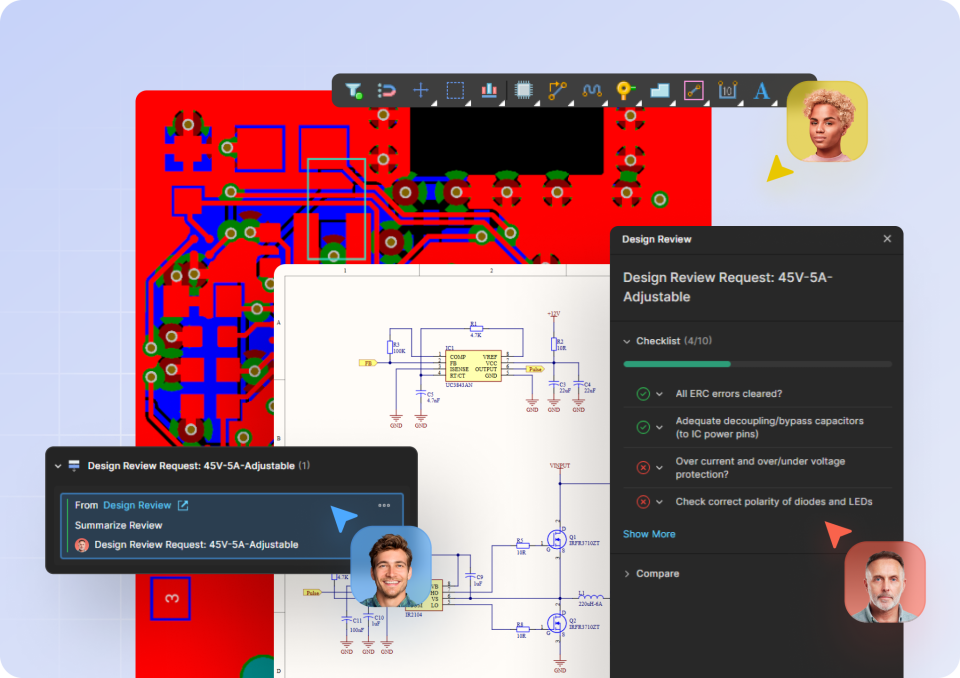
Getting Started for PCB Design Engineers
10 min
Guide Books
PCB Design Engineers
This article provides PCB design engineers with a comprehensive set of guided tutorials that show how to work within a unified design environment, tie collaboration to data, and streamline everything from layout and routing to system design and supply chain management. It highlights how integrating these workflows helps maintain consistency, improve visibility, and reduce errors across the entire design process while keeping projects aligned with real-time data. Read on to see how these step-by-step insights can help you design more efficiently and move from concept to release with greater confidence.
Read Article
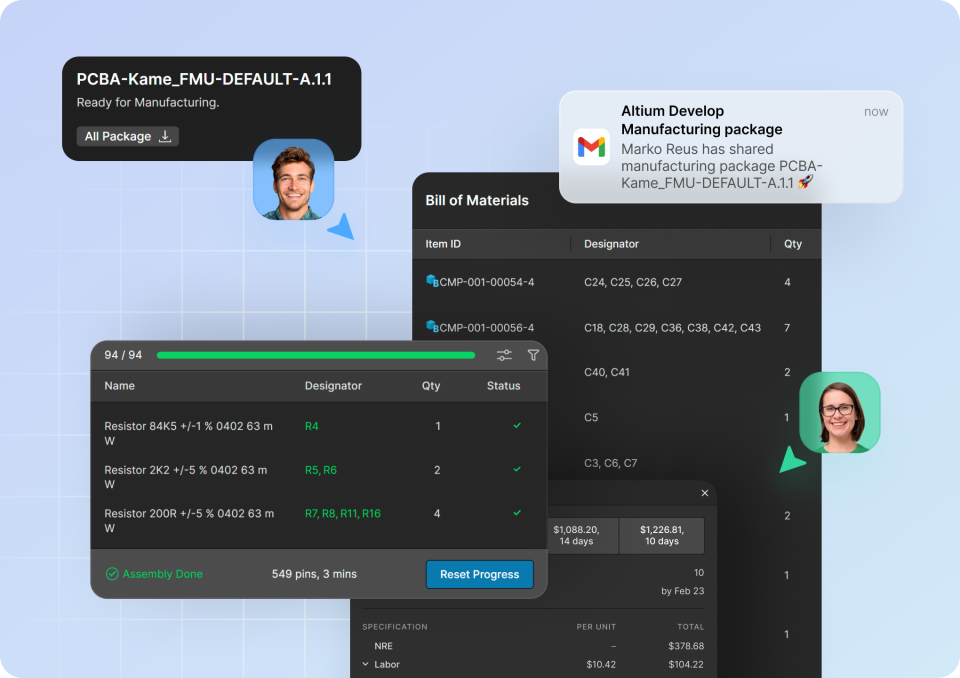
Getting Started for Manufacturing Engineers
5 min
Guide Books
Manufacturing Engineers
This article walks through how manufacturing engineers can access, validate, and act on production-ready data using a unified, browser-based environment that simplifies the transition from design to fabrication and assembly. It covers interactive assembly guidance, supply chain monitoring, PLM integration, and streamlined ordering workflows that improve accuracy, reduce manual effort, and keep production aligned with the latest design data. Read on to see how these guided tutorials can help you eliminate inefficiencies, reduce risk, and keep manufacturing processes running smoothly and confidently.
Read Article
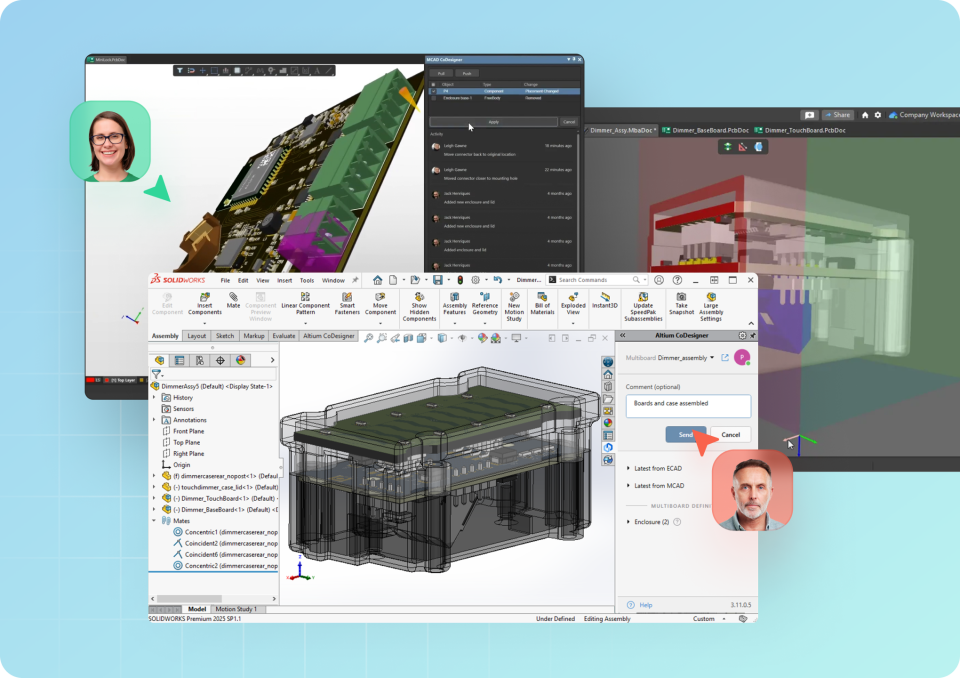
Getting Started for Mechanical Engineers
7 min
Guide Books
Engineering Teams
Mechanical Designers
This article introduces mechanical engineers to a connected workflow between ECAD and MCAD, showing how to replace static file exchanges with a live, version-controlled design link that keeps PCB and enclosure data aligned. It walks through syncing constraints, enabling detailed thermal analysis, managing revisions, and resolving interferences across complex and multi-board systems, all while maintaining traceability and accuracy throughout the process. Read on to see how these guided tutorials can help you streamline collaboration, reduce errors, and confidently design alongside your electrical counterparts.
Read Article
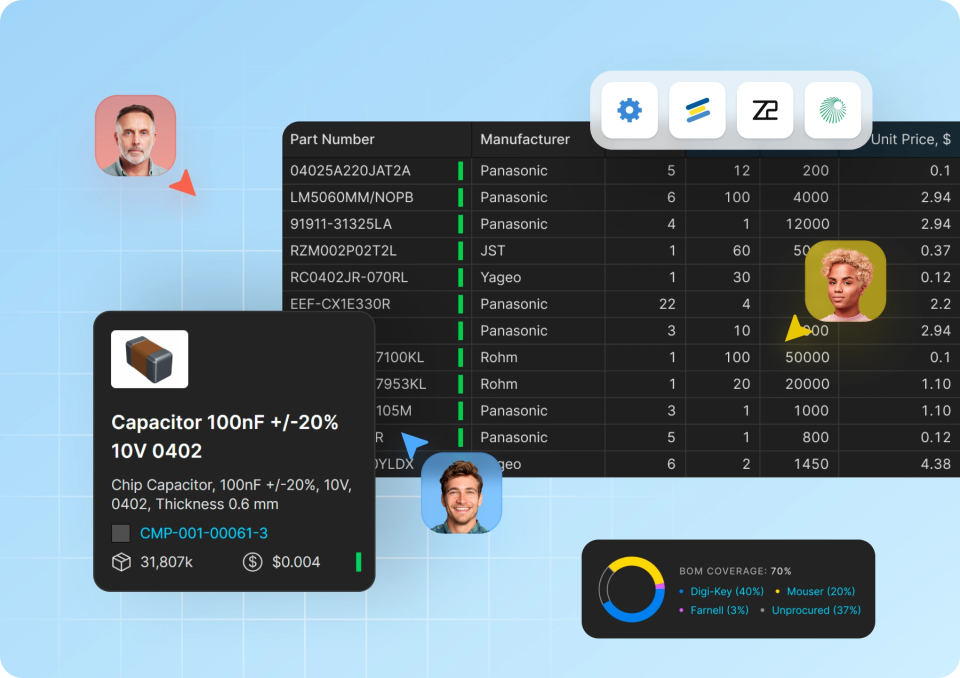
BOM Portal Introductory Tutorial
5 min
Guide Books
+1
PCB Design Engineers
Procurement Managers
Electrical Engineers
Engineering Managers
This article shows how the BOM Portal gives procurement teams early, continuous visibility into Bill of Materials Data, enabling them to identify supply chain risks, evaluate alternatives, and optimize costs while designs are still flexible. It walks through key workflows such as BOM creation, risk analysis, supplier comparison, consolidation, and lifecycle monitoring; all designed to replace reactive sourcing with proactive, data-driven decision making. Read on to learn how these tutorials can help you stay ahead of supply challenges, collaborate more effectively, and drive more confident procurement outcomes.
Read Article
Pagination
Current page
1
Page
2
Page
3
Page
4
Page
5
Page
6
Next page
Next ›
Last page
Last »