












Octopart BOM Tool: Best Practices for New Users

At a Glance
Build strong BOM habits from day one. Match parts accurately, track lifecycle status, and streamline cross-team collaboration.


You’re using the Octopart BOM Tool and enjoying the many advantages of linking design and procurement with up-to-date data from hundreds of distributors. Now, let’s make that workflow even sharper.
In this guide, you’ll learn how to:
- Streamline BOM workflows for speed and accuracy
- Proactively manage component lifecycle risks
- Harness the latest insights for effective risk mitigation
- Foster cleaner cross-team collaboration
- Identify and avoid common BOM pitfalls
1. Start with Your BOM File
Uploading a well-structured BOM, including Manufacturer Part Number (MPN), quantities, and reference designators, ensures the most accurate matching and fastest results, but it’s not mandatory. The BOM Tool automatically normalizes your data, aligning part numbers and descriptions to standardized formats, so even less structured files can still be processed effectively. A clean BOM simply helps and speeds up matching, review, and downstream purchasing. The BOM Tool accepts XLSX, CSV, and JSON files up to 5 MB.
Key Tips:
- Keep headers consistent and avoid merged cells.
- Use manufacturer numbers rather than distributor SKUs. Distributor SKUs are unique to the seller and prevent Octopart from reliably matching the base component across the global market.
- Bonus Tip: Save the master version before making edits.
2. Use Intelligent Matching to Resolve Issues Early
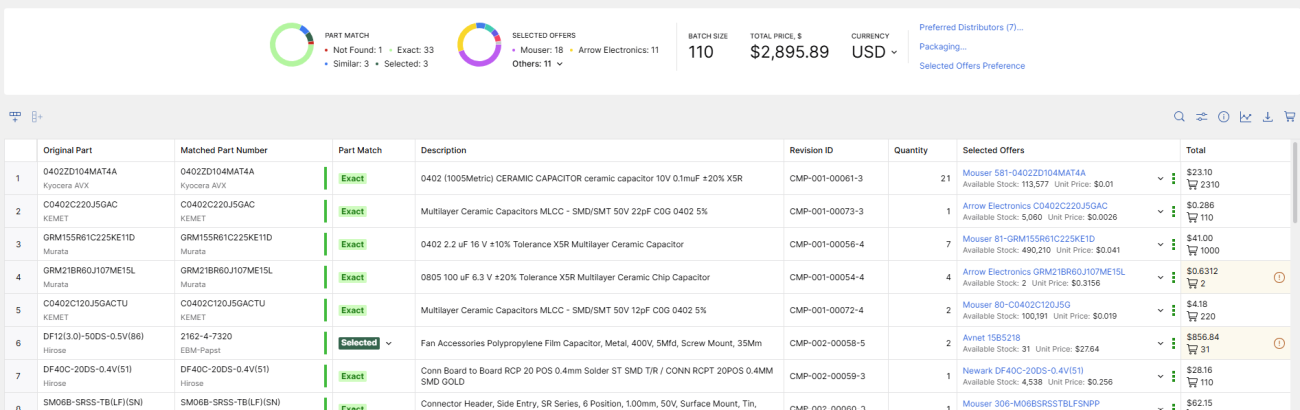
Automatic MPN matching simplifies verification and highlights potential issues before sourcing begins. Review matched parts and confirm lifecycle status (Active, Not Recommended for New Designs - NRND, or End-of-Life - EOL) to prevent downstream delays.
Key Tips:
- Filter out obsolete parts and correct any mismatched entries early.
- Use the Export function to save and version your progress locally, so you can track updates and maintain a reliable revision history on your own system.
- Bonus Tip for Altium Users: If you need built-in version control and collaborative updates across schematics, layouts, and BOMs, explore Altium Develop. The platform integrates with Octopart data while adding cloud-based storage and multi-user revision tracking.
3. Set Up Preferred Distributors
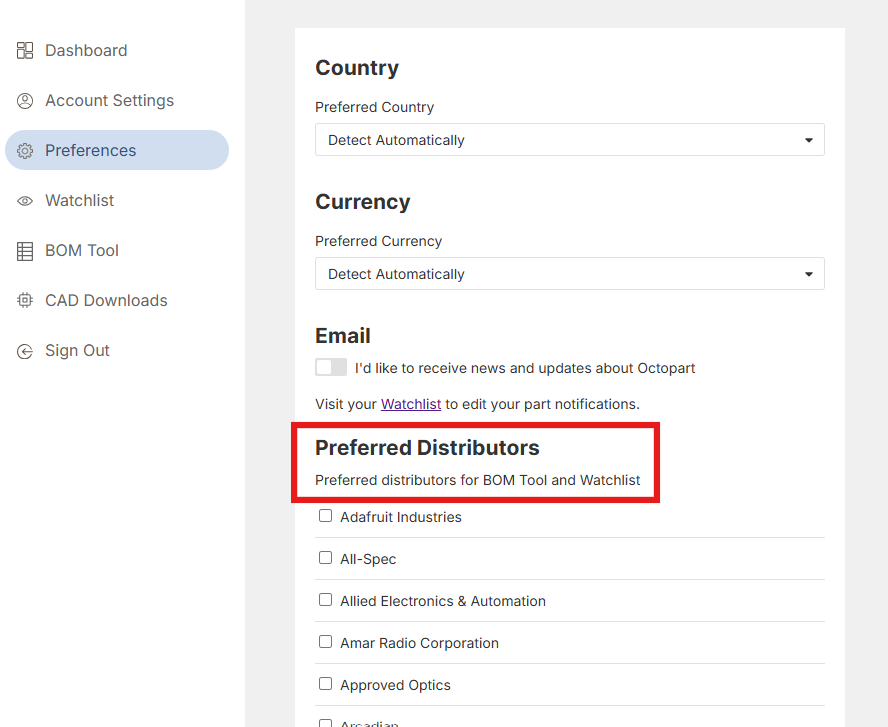
Customizing your distributor preferences in Octopart settings ensures that your sourcing aligns with your supply agreements, regional preferences, or trusted partners. Adhering to an Approved Vendor List (AVL) while including secondary sources increases flexibility during shortages.
Key Tips:
- Sort supplier offers based on your priorities, such as packaging type, minimum order quantity, or lead time, helping you quickly identify the most suitable sources for production runs or prototype builds.
- Include secondary or backup distributors to ensure continuity in production runs or prototype builds.
- Regularly review distributor preferences and Octopart settings as you adapt your procurement strategies to account for changing availability or supply risks.
4. Use Up-To-Date Insights
Accessing continuously updated Octopart data (availability, pricing, stock levels, and lifecycle status) helps you make informed sourcing decisions and mitigate component risks. Octopart provides coverage of 95M+ parts and 200M+ offers daily, giving you a comprehensive view of cost, stock, lead time, and lifecycle status.
Key Tips:
- Use visual reports to spot risky components and take preventive sourcing actions.
- Tag high-risk parts and identify validated alternatives.
- Take a Design-for-Sourcing (DfS) approach. Consider availability, lifecycle stability, and alternative options early in the design process to prevent procurement delays and ensure your BOM is resilient to supply changes.
5. Set Up Stock Notifications and Alerts
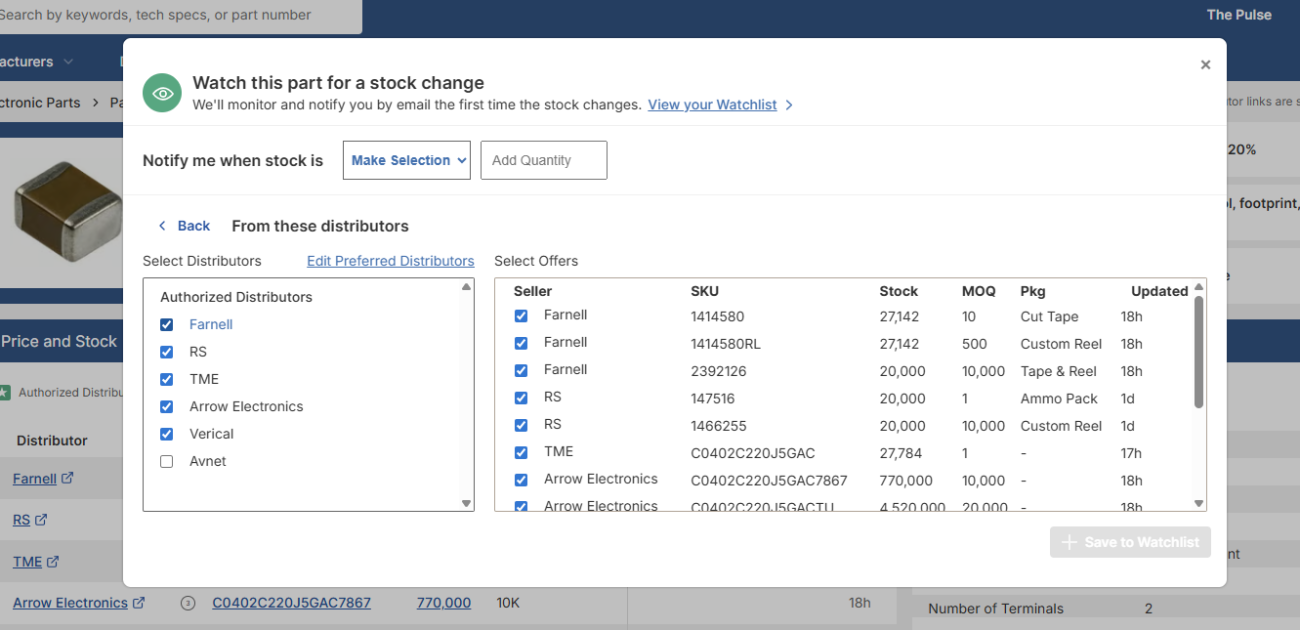
Stay ahead of supply challenges by setting alerts for critical components. From your BOM, select any MPN to open its Octopart part page, then choose Create Alert.
Key Tips:
- Receive notifications for low-stock, high-risk, or strategic components that could impact production timelines.
- Use alerts to act early and source alternatives before shortages occur.
6. Export and Collaborate
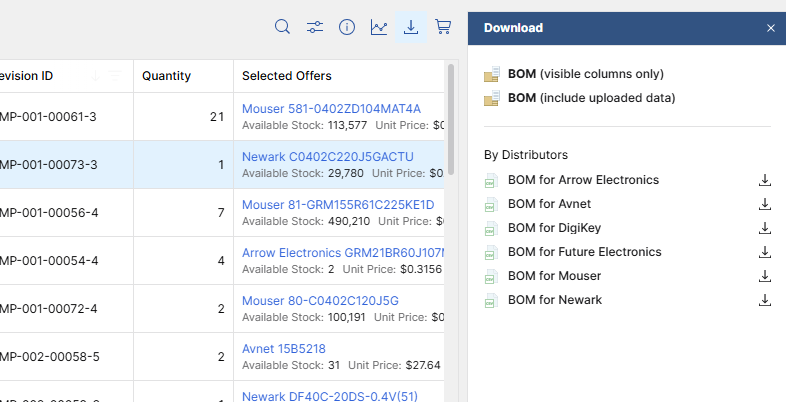
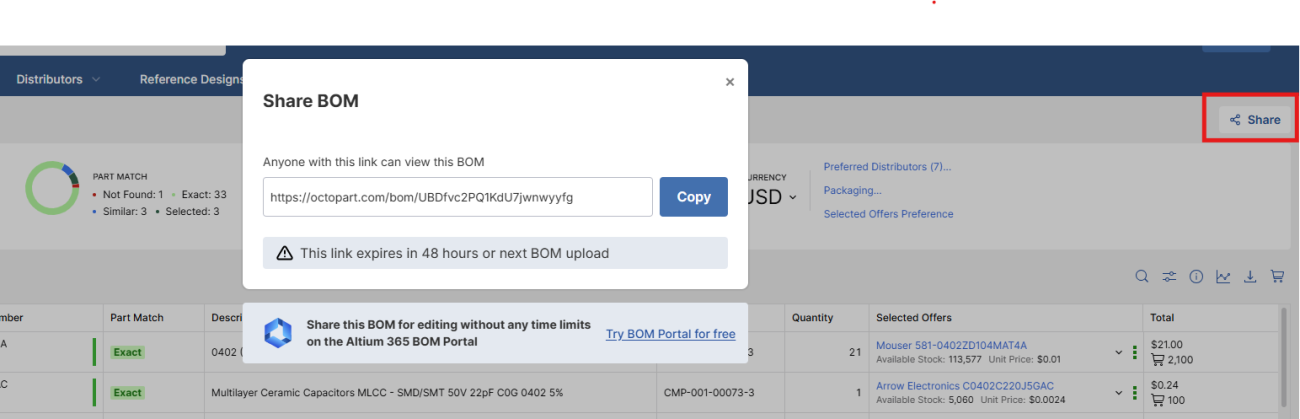
The Export and Share options enable you to collaborate with your team or suppliers while preserving key BOM information. Exports retain your original file columns and simply add an Offers column containing hyperlinks to each supplier offer, making it easy to review pricing, lead time, and stock directly from the exported file.
You can also export by distributor, which is especially useful when working with custom quotes or preferred supplier agreements.
Key Tips:
- Export by distributor for custom quotes or preferred vendor workflows.
- Use the Share feature to securely share your BOM for 48 hours, allowing quick team reviews or supplier collaboration without re-uploading. The link is ideal for quick, time-sensitive reviews with external partners.
7. Leverage Octocart for Streamlined Ordering
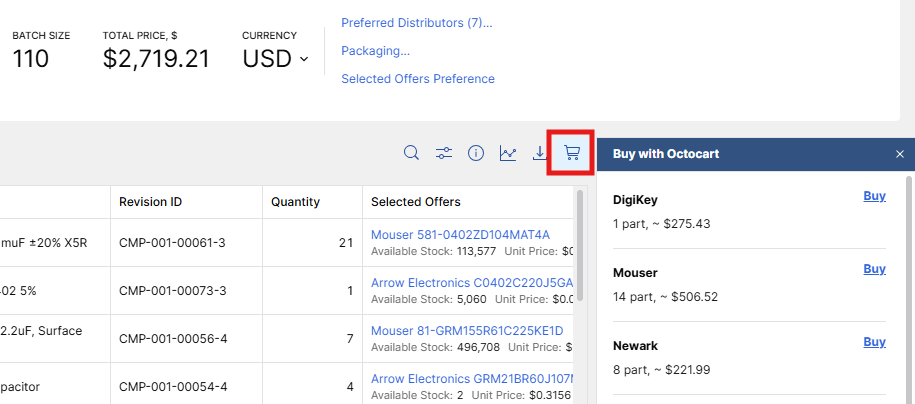
The Octopart BOM Tool allows you to open pre-populated carts directly on distributor websites using Octocart from your BOM, eliminating manual entry of part numbers, quantities, and packaging.
Key Tips:
- Save time by launching multiple distributor carts in new tabs with a single click.
- Ensure BOM integrity across distributors, reducing errors and streamlining procurement.
Tackling Tricky BOM Scenarios with the BOM Tool
While the BOM Tool streamlines much of the complexity, certain technical or logistical situations call for more nuanced solutions. Below, we look at some common cases that require a little tricky maneuvering, helping you refine your workflow and meet every challenge, despite the complexity.
1. Resolving MPN Mismatches and Ambiguous Parts
Scenario: You upload a BOM with “correct” MPNs, but some lines come back as unmatched or show multiple possible matches. You know the part exists, but the data in your BOM isn’t specific enough for the tool to confidently choose a single record.
Best Practice:
- Always pair MPN + Manufacturer. Make sure your BOM includes a dedicated Manufacturer column, not just the MPN. Many MPNs are reused or look similar across brands. Inputting both fields into the BOM Tool dramatically improves first-pass matching and reduces manual cleanup.
- Standardize naming for passives and commodities. For highly generic parts (resistors, caps, inductors, fuses), use a consistent internal pattern like: RES_10K_1%_0603 or CAP_1uF_16V_X7R_0402. Include that detail either embedded in your internal part number or in adjacent columns (value, tolerance, package, voltage, temp), giving Octopart more context to resolve ambiguous MPNs.
- Treat alternates as AVL candidates. When multiple close matches appear, don’t just pick one and ignore the rest. Mark the closest matches as potential alternates for your AVL. Capture them in your internal systems (ERP/PLM) as approved second sources.
2. Standardizing Global Pricing and Budgeting
Scenario: Your BOM includes offers in USD, EUR, CNY, JPY, etc., but finance wants everything in a single corporate currency, and you don’t want to keep juggling calculators and FX websites.
Best Practice:
- Set your preferred currency. In your Octopart account settings, choose the currency your organization uses for budgeting (e.g., USD, EUR). Octopart will normalize distributor pricing into that currency automatically, where possible.
- Use normalized pricing for apples-to-apples comparison. With a unified currency view, you can:
- Quickly see which distributor truly has the better effective price.
- Identify where price breaks make a difference at your aggregated quantities.
- Use converted prices for comparison, not final landed cost. Treat the tool’s conversions as a fast screening layer to choose which suppliers to pursue. Your final landed cost still needs to factor:
- Contract discounts,
- Freight and logistics terms,
- Duties, taxes, and local handling.
- Share a single truth with finance. When reviewing costed BOMs or NPI business cases, use Octopart’s unified-currency export so everyone — procurement, engineering, finance — debates the same cost base.
3. Fast Optimization Across Distributors
Scenario: You’re sourcing for a critical MPN and want to evaluate which distributor offers the optimal balance of price, stock, lead time, and policy; not just “who’s cheapest at quantity 1.”
Best Practice:
- Drill down from the BOM. From the BOM, click the MPN to open the part page and its summary (price breaks, stock, tech specs, packaging, distributors in one view).
- Use part summary to weigh authorized vs. non-authorized, MOQ & price breaks at your total qty, regional availability/logistics, and packaging that fits your production line.
- Feed decisions back into your process. Note chosen distributor and viable alternates in your BOM, and use the part page especially for “problem children” (long lead, low stock, EOL risk) to decide on multi-sourcing, redesign, or last-time-buy.
Frequently Asked Questions
This FAQ is designed for users who have already uploaded a BOM and want to optimize their workflow, manage lifecycle risks, and leverage advanced features like Octocart and Share. If you’re new to the BOM Tool, see our Getting Started with the Octopart BOM Tool guide for step-by-step instructions on uploading and navigating your first BOM.
How can I optimize the table layout of my BOM?
The BOM Tool allows you to add, delete, hide, or pin columns to customize your view. Adjusting columns ensures you see the most relevant information for sourcing and design decisions, streamlines your workflow, and helps prevent oversight.
How should I manage parts flagged as EOL or NRND?
Use Octopart’s lifecycle status flags to proactively identify high-risk components. Consider validated alternatives and update your BOM before procurement. Regularly reviewing flagged parts is a best practice to minimize delays and maintain supply chain resilience.
How can I efficiently export and share BOMs?
Use the Export feature to retain your original columns and add an Offers column with hyperlinks to supplier data. You can also export by distributor for custom quotes or preferred vendor workflows. The Share feature lets you securely share your BOM for 48 hours, enabling team reviews or supplier collaboration without re-uploading.
How do I set up alerts for stock changes?
From your BOM, click any MPN to open its Octopart part page, then select Create Alert to receive email notifications for stock changes. This is especially useful for high-risk, low-stock, or strategic components, helping you act before shortages occur.
How can I streamline multi-distributor ordering?
Use Octocart to open pre-filled carts on distributor websites directly from your BOM. It automatically populates part numbers, quantities, and packaging across multiple distributors in new tabs, eliminating manual entry and saving time.
How can I proactively manage MPN mismatches and maintain BOM accuracy?
Regularly review flagged or unmatched parts, confirm manufacturer numbers, and correct any errors in your BOM. Staying ahead of mismatches ensures smooth procurement and prevents downstream workflow disruptions.

About Author
Related Resources
Related Technical Documentation
Table of Contents
- 1. Start with Your BOM File
- 2. Use Intelligent Matching to Resolve Issues Early
- 3. Set Up Preferred Distributors
- 4. Use Up-To-Date Insights
- 5. Set Up Stock Notifications and Alerts
- 6. Export and Collaborate
- 7. Leverage Octocart for Streamlined Ordering
- Tackling Tricky BOM Scenarios with the BOM Tool
- 1. Resolving MPN Mismatches and Ambiguous Parts
- 2. Standardizing Global Pricing and Budgeting
- 3. Fast Optimization Across Distributors
- Frequently Asked Questions
- How can I optimize the table layout of my BOM?
- How should I manage parts flagged as EOL or NRND?
- How can I efficiently export and share BOMs?
- How do I set up alerts for stock changes?
- How can I streamline multi-distributor ordering?
- How can I proactively manage MPN mismatches and maintain BOM accuracy?
Solutions for Every Role and Team
- Discover and evaluate design options earlier
- Develop in one shared workspace
- Scale with control and compliance
- Connect every stage of hardware development
Learn More
Thank you, you are now subscribed to updates.