

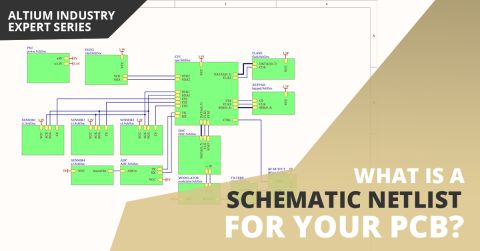

The SPICE netlist is a textual representation of the circuit. It must include all necessary components with parameters, component models, connections, and types of analysis. It is the SPICE netlist that is processed by the simulation engine. The graphical representation of the schematic is used to simplify the creation of the netlist from the user's work when simulating. Because the netlist is…
Parent page: Advanced Topics Installed by default and available from the Components panel, the Simulation Generic Components library provides access to various simulation-ready components: from RLC passives through discrete semiconductors to digital components in different formats. Refer to the Adding Simulation Models to the Design section of the Verifying & Preparing a Project for…
This page includes detailed information for features and functionality that are currently in Closed Beta. Altium Designer users: When you update your Altium Designer installation to a newer version and you use a Standalone or Private Server license, you may need to reactivate/refresh the license to be able to access and use new features and functionality. For more information, refer to the…
When a circuit will not simulate, you must identify if the problem is in the circuit, or the process of simulation. Follow the information contained in this section of the reference and work through the suggested points, trying one at a time. Sometimes during a simulation, a message will be displayed reporting errors or warnings. These messages are listed in the Messages panel. Warning Messages –…
Refer to the following pages to learn more about advanced simulation topics in Altium Designer: When a circuit does not simulate, you should identify if the problem is in the circuit or the simulation process. Refer to the Simulation Troubleshooting page for recommendations on resolving issues when performing different types of simulation. Altium Designer provides a default library with various…
The following sections present shortcut keys that are specific to the SimData Editor. For general information regarding shortcut keys - including access and editing, general Altium environment shortcuts, and accelerator keys - see Altium Designer Shortcut Keys. When looking at the shortcut key listings, keep in mind the following: When referring to shortcuts, use of the plus (+) symbol denotes…
Parent page: Analyzing Your Design Using Circuit Simulation When required analyses are configured and run, analysis results are written to a Simulation Data File (SDF), which is named after the project itself (<ProjectName>.sdf) and appears in the Projects panel under the Generated\Simulation Documents folder. The file automatically opened as a document tab – presented in the SimData editor…
Parent page: Analyzing Your Design using Circuit Simulation The Analysis Setup & Run region of the Simulation Dashboard panel is used to configure and run the simulation analyses. Once the circuit is verified and prepared for simulation, configure the required analysis type as described in the below sections. The Analysis Setup & Run region of the Simulation Dashboard panel The following…
Parent page: Analyzing Your Design Using Circuit Simulation The design to be simulated should be verified and adequately prepared so you can receive the proper simulation results. The relevant regions of the Simulation Dashboard panel will guide you in design verification and preparation to make sure that the design meets the requirements necessary for simulation. Controlling the Scope of the…
Mixed-Signal Circuit Simulation Circuit simulation allows the designer to explore their ideas before committing to manufacture. Concepts can be verified and the circuit can be tuned quickly and accurately. Circuit simulation also gives the designer the opportunity to perform measurements that may not be physically possible on the workbench. The Simulator is a true mixed-signal simulator, meaning…
Get Started